Image to CAD for AEC: A Practical Ultimate Guide to High‑Accuracy Conversion
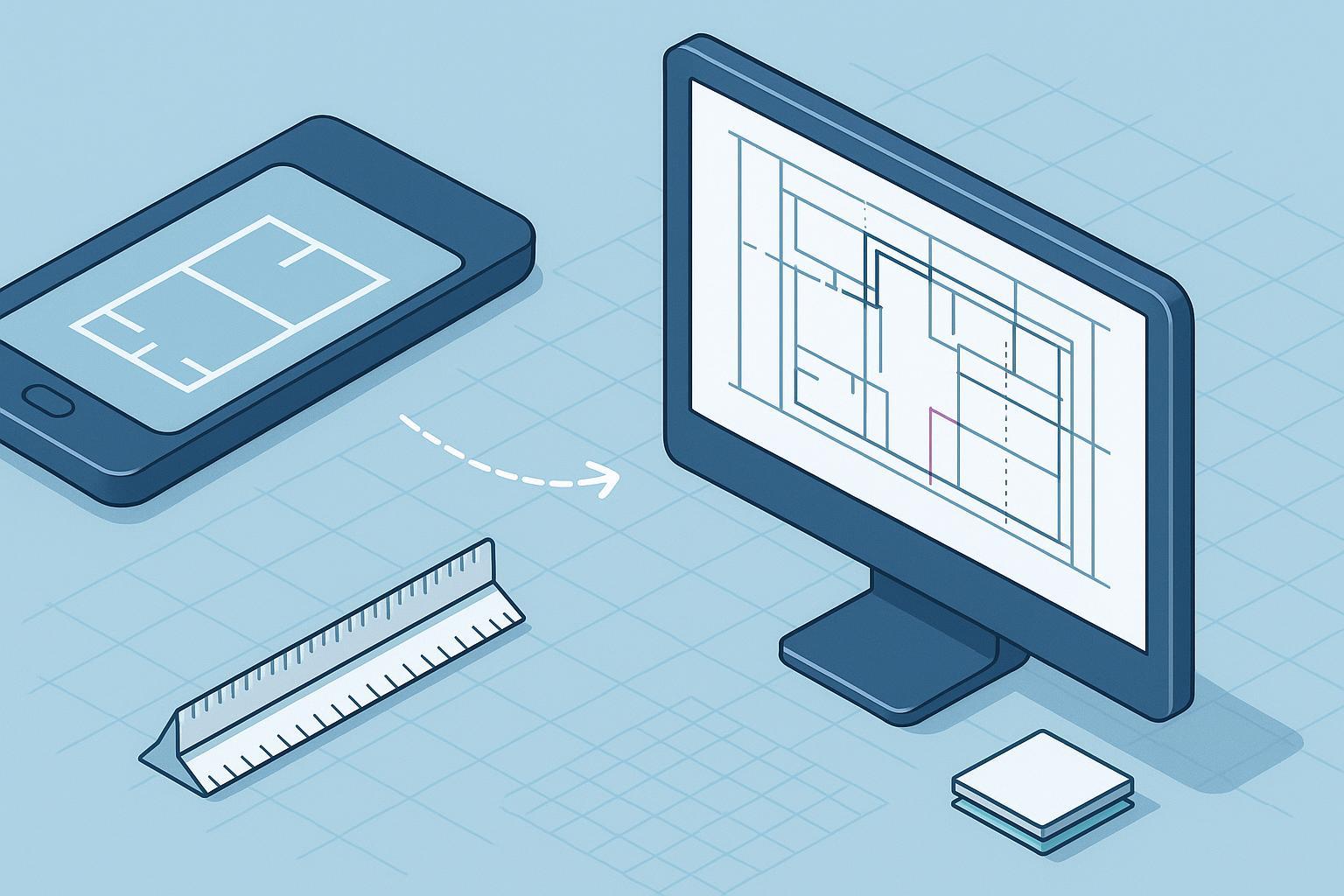
Turning site photos, scans, and legacy PDFs into editable DWG/DXF can be fast—and precise—when you approach it like production rather than a one‑click export. This guide is written for CAD/BIM managers and drafters who care about preserving layers, linetypes, and text, and who need a reliable image to CAD workflow for real projects, not just demos. We’ll cover the full path from source capture to scale calibration, OCR, layer mapping, mixed PDF handling, batch governance, and template integration. Expect trade‑offs, QA checkpoints, and settings you can replicate.
Quick primer on raster, vector, and typical AEC pitfalls
Raster files (photos, scans) are pixels; vector files (DWG/DXF) are editable geometric entities. Converting raster to vector intelligently is what “image to CAD” is all about. In AEC, the common failure modes are predictable: scale drift from unknown DPI or unit mismatches; jagged lines that become hundreds of tiny segments; merged or lost layers; and text that arrives as polylines instead of editable strings. Industry how‑tos emphasize that preprocessing improves results and that you still need post‑conversion QA.
Another pitfall unique to on‑site photos is perspective distortion: the camera isn’t square to the drawing plane, so parallel lines converge. Rectification must precede vectorization or tracing; otherwise, your “straight” walls won’t be parallel in CAD. We’ll address that below with a practical rectification approach informed by OpenCV’s homography methods and common pitfalls documented by maintainers and contributors in 2024–2025 (OpenCV discussion of homography and perspective correction).
Preflight quality assessment of your source
Before any image to CAD conversion, inspect the source. What matters most is legibility at working zoom levels, even illumination, and predictable scaling. For scans, 300–500 DPI often balances fidelity and file size; for fine details, higher DPI can help. Line‑art formats like TIFF or PNG avoid JPEG artifacts that spawn false vectors. Industry references and digitization guidance echo this: consistent capture quality reduces cleanup later; you don’t win by over‑compressing line drawings. For a succinct baseline on DPI and cleanup rationale, as well as broader capture quality targets, the FADGI technical guidelines used across cultural‑heritage digitization programs in 2023 illustrate how planned QA improves outcomes across imaging pipelines (FADGI Technical Guidelines, 3rd edition 2023).
Check resolution: 300–500 DPI for scanned line drawings; confirm readable at 200% zoom with crisp edges, not mushy pixels.
Check cleanliness: minimal speckle, no heavy compression, no shadows or folds; crop dark borders that can confuse detection.
Check geometry: if it’s a photo, ensure the drawing is as flat and square as possible; note four reliable corner points for later rectification.
Check scope: separate legends/title blocks if they’ll confuse vectorization; consider handling them as isolated passes.
Image to CAD step-by-step workflow
Rectify photos to a fronto‑parallel view. For site photos, correct perspective before any vector work. Using a vision tool or image editor that supports four‑point transforms, map the four corners of the drawing to a rectangle to remove keystone distortion. This mirrors OpenCV’s homography plus warp approach discussed by the community in 2024–2025; undistort first if a wide‑angle lens was used.
Preprocess for line clarity. Despeckle, boost contrast, and, for line drawings, consider binarization to close gaps. Slight line thickening helps prevent broken vectors. Practical presets from CAD‑oriented converters align with this advice and explain why modest cleanup improves vector quality without inventing geometry.
Choose your conversion path. Options include full auto‑vectorization, manual tracing for tricky regions, or a hybrid. When a PDF contains both vector and raster content, import the vectors and only vectorize the raster parts. Autodesk’s 2025 guidance on PDFIMPORT details the native import of vector elements and typical unit pitfalls; it’s a good baseline for mixed sources (Autodesk guide to importing PDFs into AutoCAD).
Convert to DWG/DXF with conservative settings. Favor settings that create meaningful lines, arcs, and polylines over fragmented micro‑segments. Disable “over‑smooth” options that might round sharp corners. Ensure separate layers for linework, hatches, and text if your tool supports that.
Calibrate scale inside CAD. If you imported a PDF as vectors, verify units first—metric/imperial mismatches often produce a 25.4× error. Autodesk’s support note details this pattern and the fix. For rasters or unknown DPI, use SCALE with Reference or ALIGN with scale to match a known dimension, then verify across at least two other dimensions (Autodesk support on 25.4 unit mismatch in PDF imports).
Convert polylines back to text when possible. For vector PDFs that turned text into geometry, use AutoCAD’s Recognize SHX Text workflow to convert outlines into MText by matching likely SHX fonts; Autodesk’s blog explains settings and limitations as tested in 2024–2025 (Autodesk walkthrough on translating PDF SHX into Mtext). For purely rasterized text, run OCR on the cleaned image first or use a converter with OCR; then place results on a dedicated text layer for later style mapping.
Map layers and linetypes to firm standards. Even if your converter emits logical layers, align them to your template. Use a scriptable mapping table to rename layers to NCS‑style patterns and to assign correct linetypes/scales. The U.S. National CAD Standard’s layer naming structure provides a consistent baseline to target in production (National CAD Standard overview for layer naming).
Save and document. Store the rectified/preprocessed raster alongside the DWG/DXF and note calibration references used. This speeds audits and change requests later.
Preserving layers and linetypes with a standards-first strategy
“High‑accuracy” is not only geometry; it’s also semantics. After an image to CAD conversion, aim for layers and linetypes that reflect firm templates so drawings drop cleanly into sheet sets. A pragmatic approach is to treat whatever the converter outputs as an intermediate state. Immediately post‑import, apply a mapping: rename layers to your template schema, reassign linetypes, and normalize text styles. Where possible, split text, dimensions, and leaders onto dedicated layers so overrides and viewports behave predictably. Aligning to a well‑known scheme such as the National CAD Standard reduces coordination friction across disciplines and tools.
Two practical notes from production:
Preserve provenance. Keep a “_SRC” or “_IMPORTED” layer state capturing the raw import before remapping. If QA finds an issue, you can diff quickly.
Prefer arcs and circles over many short segments. If your converter can fit arcs, enable it judiciously. Stair treads and circular columns are much easier to edit as real curves.
Mixed raster–vector PDFs and when to split the workflow
Many plan PDFs bundle crisp vector linework with raster underlays like stamps, photos, or scanned details. If you treat the entire sheet as a raster, you lose fidelity and create needless cleanup. A better path is to split: import native vectors, then isolate and vectorize only the raster regions, keeping them logically separate. Many conversion tutorials from 2024–2025 outline this separation approach with examples, and Autodesk’s PDFIMPORT article explains how native vectors arrive inside AutoCAD for further editing. Use the split‑and‑recombine tactic for legends, details, or clouded revisions that are rasterized in otherwise vector pages.
Batch governance for plan sets
For large inbound sets—renovations, as‑builts, or scanned archives—consistency beats heroics. Establish stable preprocessing presets, define a small set of conversion profiles, and run jobs in controllable batches. Sample QA 10–20% of outputs per run, focusing on scale accuracy, endpoint connectivity, text coverage, and layer mapping completeness. When PDFs span many pages, remember that native AutoCAD imports are page‑by‑page; plan orchestration around that reality, or use specialist tools for splitting and routing. Bluebeam Revu can help upstream calibration so pages arrive with known scales before CAD work proceeds; their documentation on measurement and calibration in 2024–2025 shows the basic pattern for consistent scale settings across sheets (Bluebeam measurement and calibration guidance).
Template integration in AutoCAD and Revit
In AutoCAD, Layer States and filters make quick work of normalizing imports. After you apply your mapping, save a .las state so future jobs inherit the same visibility, colors, and lineweights. Check viewport overrides to ensure plotted output matches expectations. Autodesk’s training modules on professional layer management, last refreshed across recent releases, walk through reliable practices for teams working from standard templates (Autodesk tutorial on professional layer management).
In Revit, link the DWG into views with a template that already encodes visibility overrides for imported categories. Treat the CAD link as a reference underlay for modeling or documentation, and manage updates by reloading the same filename to maintain links. Keep linetypes, text, and hatches tidy on the CAD side so Revit’s visibility system remains predictable.
QA checklist before handoff
Scale verified with at least three known dimensions across the sheet and in different directions, with acceptable error documented.
Text converted where possible and legible at plotted scales; remaining polyline text flagged.
Layers mapped to firm standards with linetypes and colors aligned to the template; provenance layer state archived.
Geometry cleaned: no orphan fragments, no doubled lines, continuous polylines where appropriate, arcs fitted for circular features.
Mixed PDF content handled: native vectors preserved, raster regions processed and aligned, legends/title blocks intact.
File hygiene: units confirmed, purge run thoughtfully, external references resolved, and a brief note stored with calibration references and any known limitations.
Micro‑example and next steps
Here is one neutral way a team might execute a photo‑to‑DWG pass using a cloud tool as an initial step and finishing in CAD. After photographing a flat plan square‑on with four corner points marked, the team rectifies the image, runs light despeckle and binarization, and then uses the online “image to CAD” workflow in the Image to CAD Converter to produce a DWG/DXF for review. From there, inside AutoCAD, they calibrate scale with a known door width, run SHX text recognition on imported outlines where applicable, and apply a layer mapping script to standardize names and linetypes. The final file drops into their title‑block template and plots correctly on first pass. If you want to replicate the cloud step, visit the homepage and start from a cleaned image: see Image to CAD Converter at https://imagetocad.com.
For a plan-specific version of this process, see how to convert a floor plan image to CAD. You can also inspect the complete 112742 floor plan example to compare the raster source with the generated CAD linework.
Looking ahead, consider formalizing three assets for your team: a preprocessing preset for scans and for photos, a layer mapping CSV for rapid normalization, and a standing QA sampling protocol with pass/fail thresholds. With those in place, your image to CAD throughput climbs while edit time and rework fall.
References and further reading
Preprocessing and conversion patterns summarized with settings context in 2024–2025: most modern image‑to‑CAD tools document recommended JPG/PNG→DWG/DXF preparation steps in their technique sections.
Autodesk’s PDF import and unit considerations, including the 25.4 factor seen in many metric/imperial mismatches, remain a reliable reference in 2025.
The National CAD Standard’s layer naming scheme anchors consistent layer mapping across disciplines and templates.
Bluebeam’s calibration documentation is a helpful upstream control for page‑scale consistency before CAD import.
OpenCV community notes on homography and perspective correction provide practical guidance for rectifying site photos before vectorization.