JPG to CAD Converter
Turn a JPEG scan or photograph of a drawing into editable linework. Choose the CAD format for your next task, then check the geometry against the original. Input: JPG / JPEG. Output: DXF for CAD editing and DWG workflows.
How to convert JPG to CAD
1. Upload
Add a clear JPG / JPEG file with strong contrast and visible edges.
2. Convert
Run online conversion to extract CAD-ready vectors from the reference.
3. Preview
Inspect the result before download so obvious noise can be spotted early.
4. Download & clean up
Open the available CAD output in your editor, check units and scale, and refine layers. If you need DWG and the download is DXF, save it as DWG in a compatible editor.
Common use cases
Paper drawing scans
Recover linework from a JPEG scan while keeping the original as a reference for missing dimensions.
Phone photos of plans
Prepare a square-on photo of a flat drawing before tracing walls, openings, and boundaries.
JPEG design exports
Use a source JPEG when vector drawings are unavailable; avoid repeated recompression.
Measured sketches
Convert the sketch as a drafting starting point, then calibrate it using a known length.
Example conversions
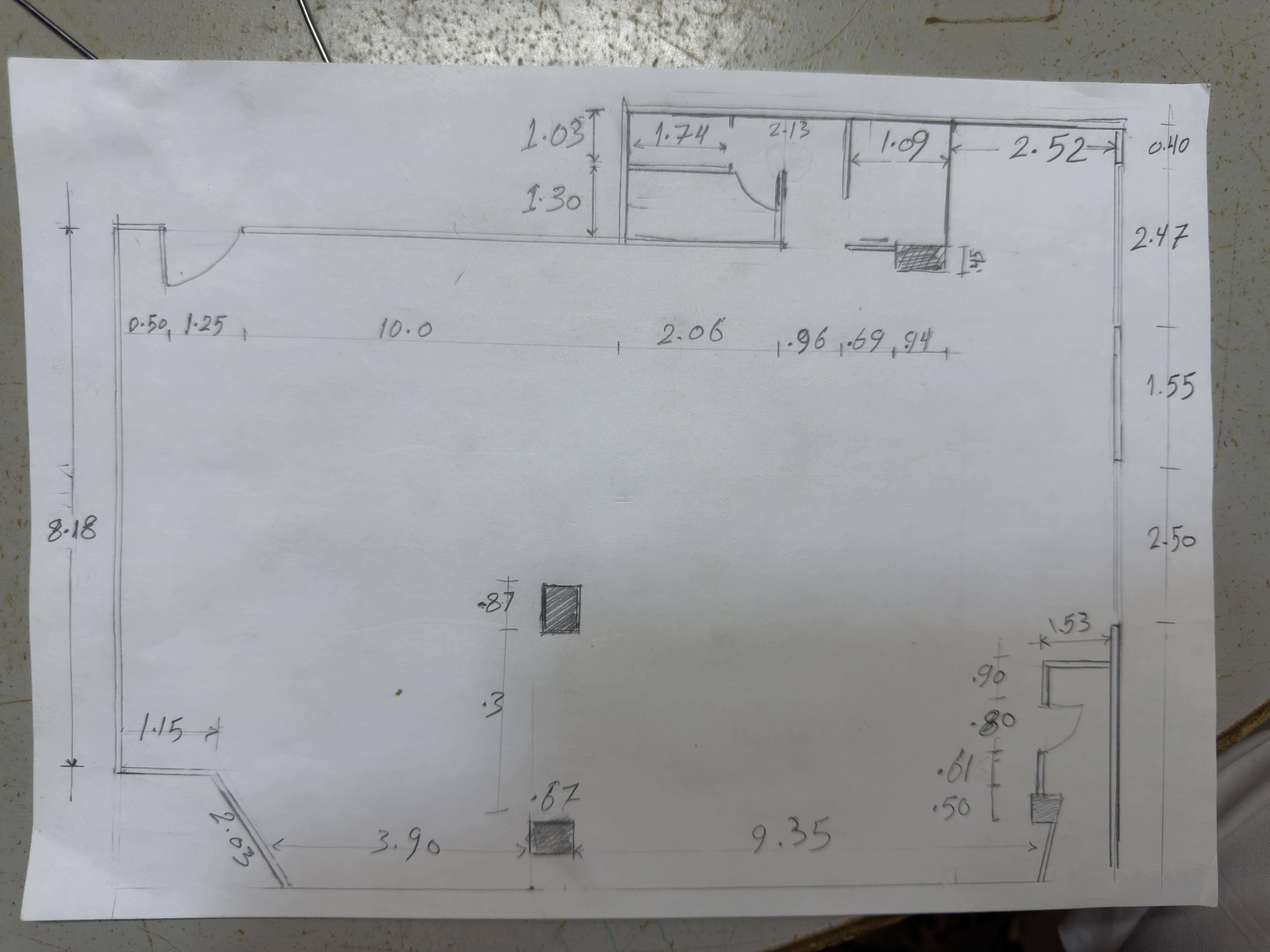
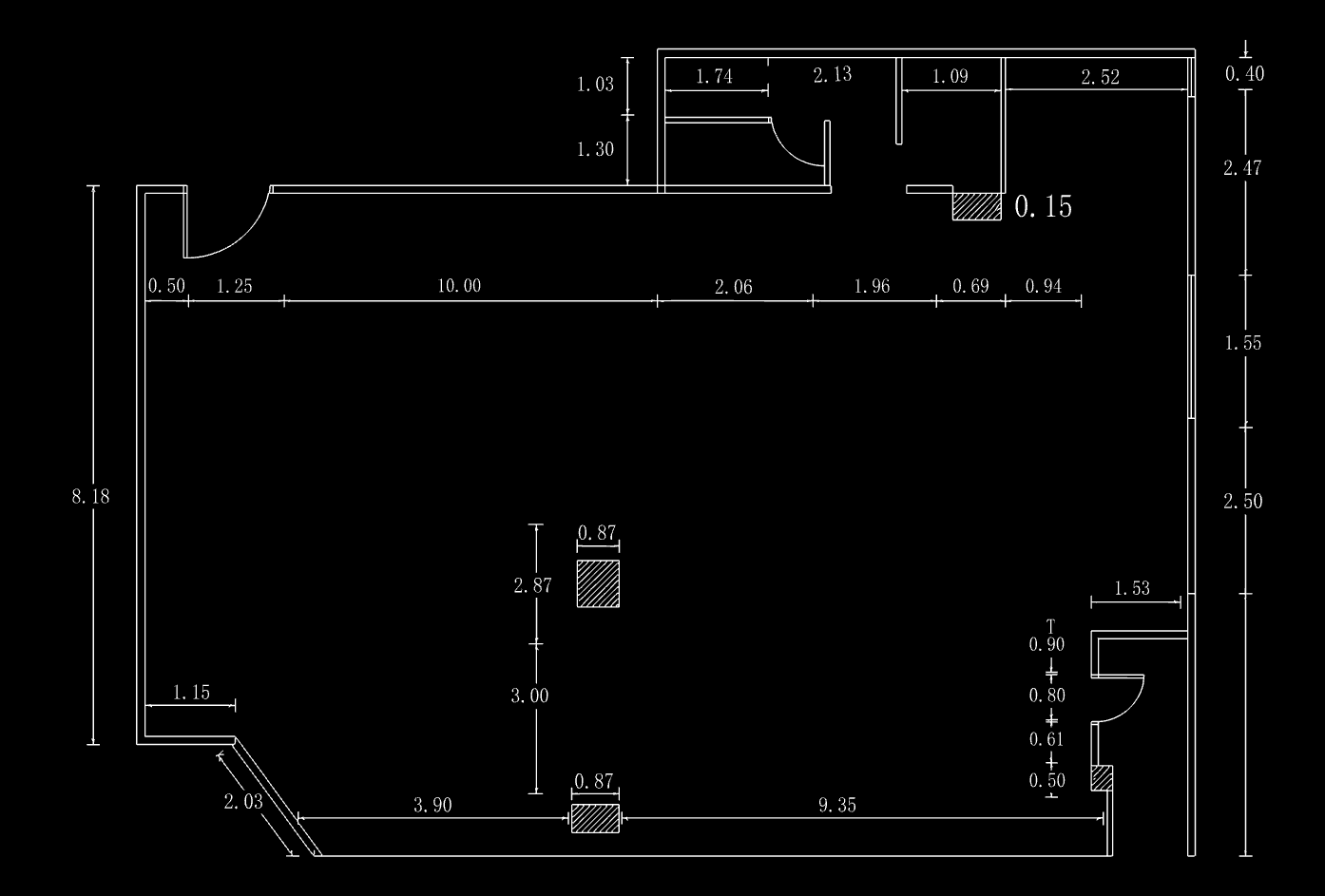
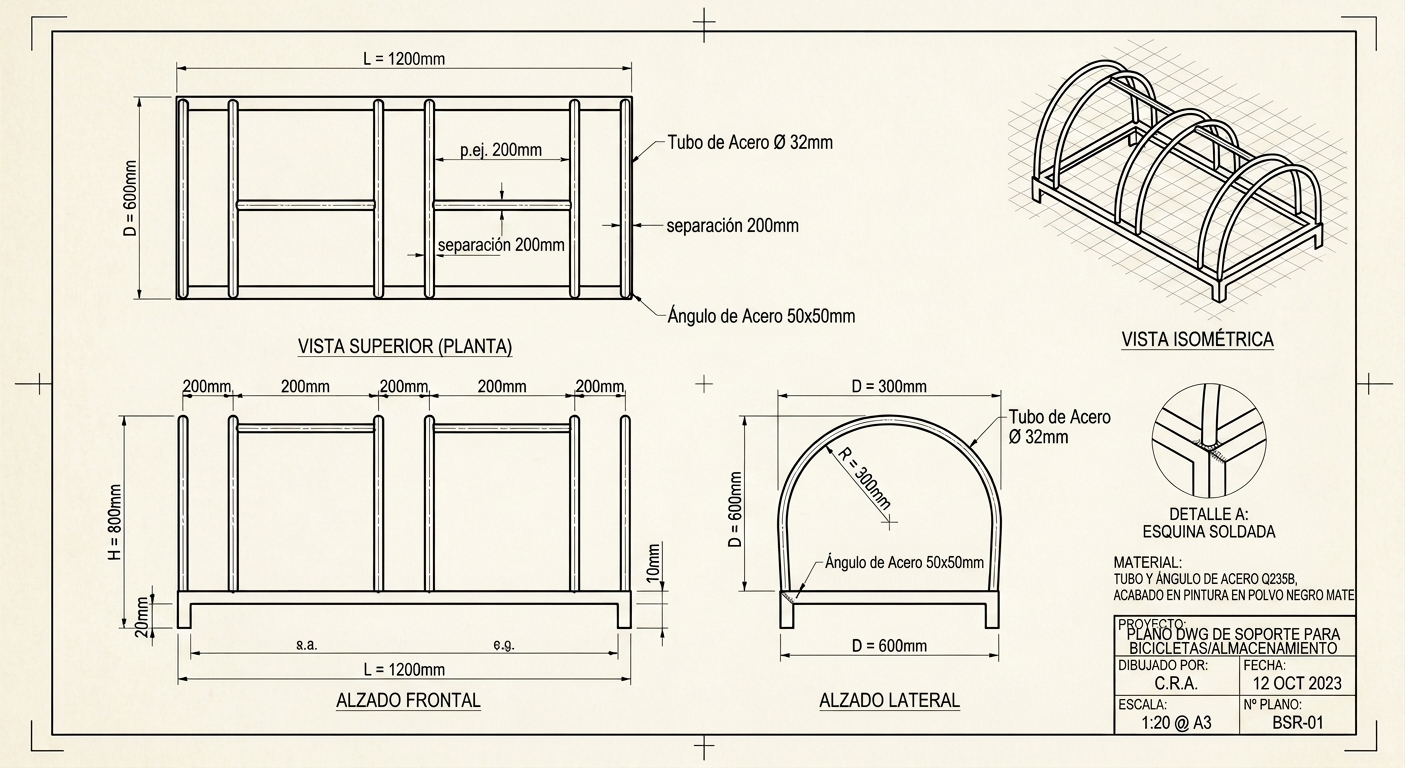
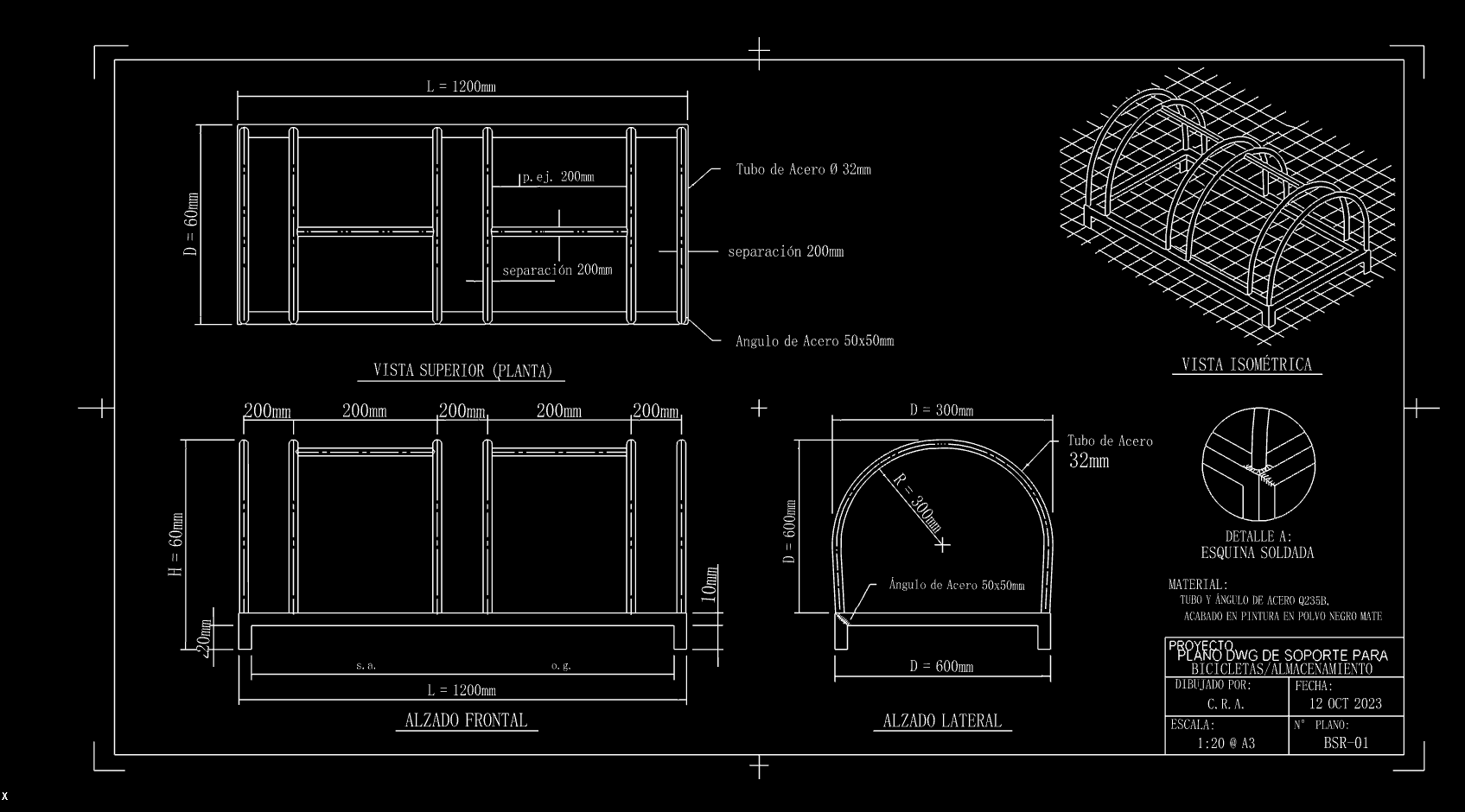
These examples show JPG sources and rendered CAD previews. Open a case to inspect its drawing in the interactive viewer; the preview image is not a downloadable DWG file.
FAQ
Are JPG and JPEG different conversion tasks?
No. JPG and JPEG refer to the same image format. Use the same converter and preparation steps for both extensions.
Which CAD format should I choose?
Use DXF when exchanging editable geometry between CAD tools. If your project requires DWG, open the DXF in a DWG-capable editor and save it as DWG.
Does attaching a JPG in CAD make it editable?
An attached JPG remains a raster reference. Vector conversion creates separate geometry that you can select and edit.
Will the drawing have correct dimensions automatically?
A photograph does not establish drawing units or real-world scale. Check a known length, set the scale, and verify another length before use.
Choose a CAD workflow for your JPEG
Editable drawing or image reference?
Keep a JPG as an underlay when you only need a visual reference. Convert it when you need selectable lines and curves for redrawing. The output still needs checking against the source.
DXF for exchange; DWG for a drawing project
Use DXF for an application that accepts CAD exchange files. For a DWG deliverable, open the DXF in a DWG-capable editor, organize the drawing, and save it in the recipient's supported version.
2D geometry is not a 3D model
A photograph does not supply the depth, hidden edges, or constraints of a parametric solid. Treat converted linework as a reference for further drafting or modeling.
Check your JPG before and after conversion
Before upload
Use the original JPEG at its available resolution. Correct perspective, crop background clutter, and preserve a known measurement. Avoid sharpening that creates double edges and repeated JPEG compression.
Before CAD handoff
Compare major edges and small openings with the source. Calibrate scale using a known length and verify another dimension. Review text, gaps, and duplicate segments before sending the file to another person or tool.
Related converters
Image to DXF Converter
image to DXF
Image to DWG Converter
image to DWG
JPG to DXF Converter
JPG to DXF
PNG to DXF Converter
PNG to DXF
JPG to DWG Converter
JPG to DWG
PNG to DWG Converter
PNG to DWG
Floor Plan to CAD Converter
floor plan to CAD
PDF to CAD Converter
PDF to CAD
Also see the Image to CAD homepage and related tools: image to DXF, image to DWG, JPG to DXF, PNG to DXF, JPG to DWG, PNG to DWG, floor plan to CAD, PDF to CAD.